Project details

Thumbnail

Client:

Vidwath Innovative Solutions Ltd.

Tool:

Figma

Kenya curriculum Workflow


Client

Vidwath Innovative Solutions Ltd.

Industry

EdTech · Smart Classroom

My Role

UX Researcher (Freelance)

Deliverables

Information Architecture and Mid-Fidelity Wireframes

Platform

Large-Screen Interactive Smart Panel

Timeline

Jan 2026 - Feb 2026


Overview

Vidwath is a Mysuru-based EdTech company serving 1M+ students across 8,000+ schools in Karnataka. Their flagship product — an interactive 4K smart panel — delivers curriculum-aligned content directly in classrooms, also in regional languages.

This project was a new curriculum initiative: designing the content delivery interface for the Interactive Panel, specifically for the Kenya curriculum.

My job: Map the complete information architecture and translate it into mid-fidelity wireframes for the smart panel - a big screen used by teachers in live classrooms.
img
img

A smart panel interface is fundamentally different from a mobile app or website. The teacher operates the panel in front of 30 students. Every second of hesitation is visible. Every wrong tap has an audience.

A teacher mid-lesson cannot stop to hunt through nested menus. If the interface is confusing, they'll abandon the panel and go back to the whiteboard.

The core challenge wasn't what content to include — that was already decided. It was: how do you structure all of it so a teacher can navigate confidently, without ever getting lost?


The Teacher's Mental Model

Teachers don't think in features. They think in structure:

"I'm teaching Grade 6 Science, Chapter 4, Topic 2 today."

That mental model became the navigation spine:

Grade  Subject  Chapter    [Teach / Learn / Assess]

The hierarchy isn't just IA — it's a direct mirror of how teachers organise their own knowledge.


Mapping the Content Ecosystem

I catalogued every content type and grouped them into three teaching modes:

🟠 Teach (Lessons) — Deliver instruction Concept list with progress tracking · linked activities per topic

🟡 Learn — Enrich understanding Blueprint · Story Time · Concept Bites · Arcade/DIY Activity · Books & Notes

🟢 Assessments — Evaluate learning Check Your Learning · Practice Questions · Textbook Solutions · Question Repository · Hands-On Learning


Information Architecture

Three-Pillar Split at Chapter Level

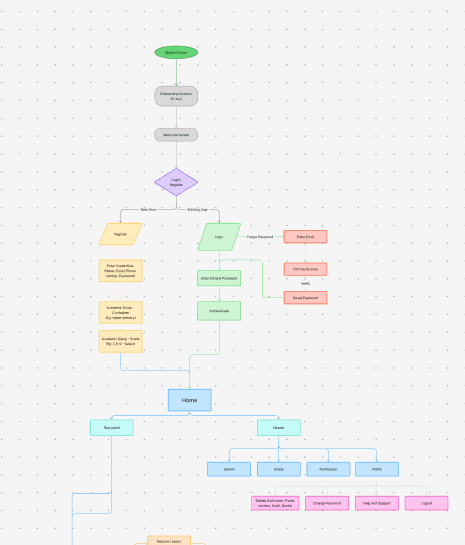
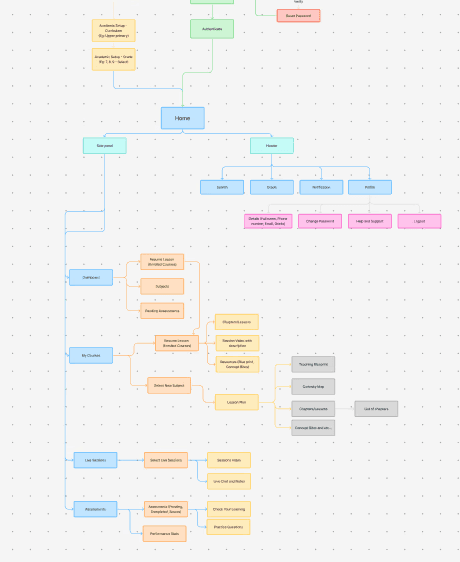
Once a chapter is selected, the interface branches into three parallel paths: Teach · Learn · Assessments.

Why three pillars instead of a flat list?

A flat list of all 9+ content types - Blueprint, Story Time, Concept Bites, Check Your Learning, Practice Questions etc.. forces the teacher to read every label before selecting. Three clear pillars reduce that to a single decision.

Progress bar on every topic

Each topic in the Concept List shows a progress bar and an indicator of any linked activity.

Why: Teachers teach the same chapter across multiple class periods. The interface remembers where they left off - so they don't have to.

The Continue / Start Over

When a teacher re-enters a previously taught topic, the system asks: Resume, or restart?

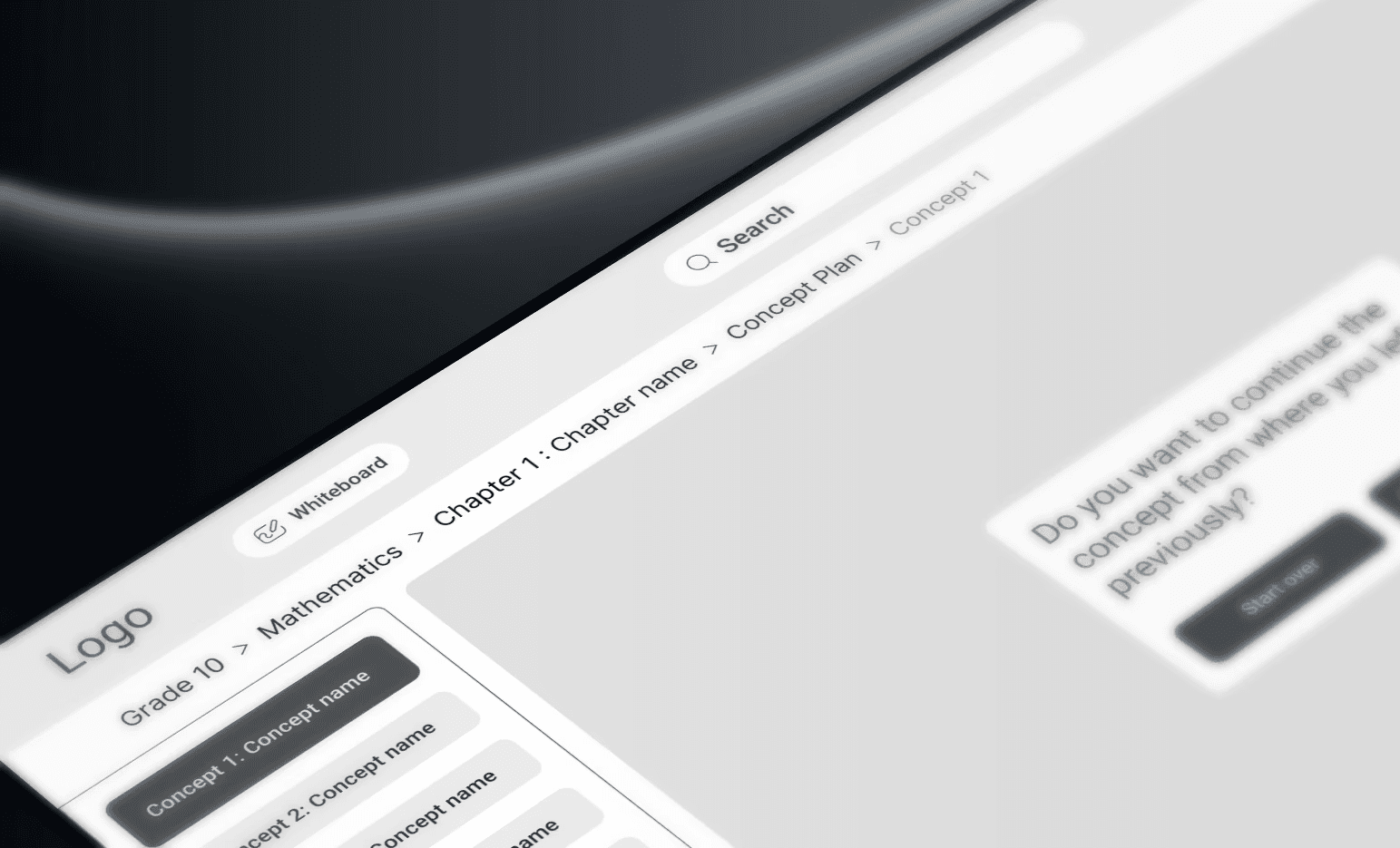
Why: These are two completely different intents - resuming a cut-short lesson vs. restarting for a new class group. Making this choice explicit prevents the teacher from accidentally resuming mid-lesson in front of a new class.

Minimal options during content playback

While a topic is playing, only three controls are visible: Previous Concept · Next Concept · Linked Activity/Assessment.

Why: The content should dominate the screen. Controls should be minimal, predictable, and never intrusive during live instruction.

Special paths inside Teach:

  • Curiosity Maps - A visual topic map showing how concepts connect. Teachers can use it to orient students or jump directly to a related concept.

  • Story Time - A narrative-led chapter introduction. Useful for lesson openers.


A smart panel interface is fundamentally different from a mobile app or website. The teacher operates the panel in front of 30 students. Every second of hesitation is visible. Every wrong tap has an audience.

A teacher mid-lesson cannot stop to hunt through nested menus. If the interface is confusing, they'll abandon the panel and go back to the whiteboard.

The core challenge wasn't what content to include — that was already decided. It was: how do you structure all of it so a teacher can navigate confidently, without ever getting lost?


The Teacher's Mental Model

Teachers don't think in features. They think in structure:

"I'm teaching Grade 6 Science, Chapter 4, Topic 2 today."

That mental model became the navigation spine:

Grade  Subject  Chapter    [Teach / Learn / Assess]

The hierarchy isn't just IA — it's a direct mirror of how teachers organise their own knowledge.


Mapping the Content Ecosystem

I catalogued every content type and grouped them into three teaching modes:

🟠 Teach (Lessons) — Deliver instruction Concept list with progress tracking · linked activities per topic

🟡 Learn — Enrich understanding Blueprint · Story Time · Concept Bites · Arcade/DIY Activity · Books & Notes

🟢 Assessments — Evaluate learning Check Your Learning · Practice Questions · Textbook Solutions · Question Repository · Hands-On Learning


Information Architecture

Three-Pillar Split at Chapter Level

Once a chapter is selected, the interface branches into three parallel paths: Teach · Learn · Assessments.

Why three pillars instead of a flat list?

A flat list of all 9+ content types - Blueprint, Story Time, Concept Bites, Check Your Learning, Practice Questions etc.. forces the teacher to read every label before selecting. Three clear pillars reduce that to a single decision.

Progress bar on every topic

Each topic in the Concept List shows a progress bar and an indicator of any linked activity.

Why: Teachers teach the same chapter across multiple class periods. The interface remembers where they left off - so they don't have to.

The Continue / Start Over

When a teacher re-enters a previously taught topic, the system asks: Resume, or restart?

Why: These are two completely different intents - resuming a cut-short lesson vs. restarting for a new class group. Making this choice explicit prevents the teacher from accidentally resuming mid-lesson in front of a new class.

Minimal options during content playback

While a topic is playing, only three controls are visible: Previous Concept · Next Concept · Linked Activity/Assessment.

Why: The content should dominate the screen. Controls should be minimal, predictable, and never intrusive during live instruction.

Special paths inside Teach:

  • Curiosity Maps - A visual topic map showing how concepts connect. Teachers can use it to orient students or jump directly to a related concept.

  • Story Time - A narrative-led chapter introduction. Useful for lesson openers.


A smart panel interface is fundamentally different from a mobile app or website. The teacher operates the panel in front of 30 students. Every second of hesitation is visible. Every wrong tap has an audience.

A teacher mid-lesson cannot stop to hunt through nested menus. If the interface is confusing, they'll abandon the panel and go back to the whiteboard.

The core challenge wasn't what content to include — that was already decided. It was: how do you structure all of it so a teacher can navigate confidently, without ever getting lost?


The Teacher's Mental Model

Teachers don't think in features. They think in structure:

"I'm teaching Grade 6 Science, Chapter 4, Topic 2 today."

That mental model became the navigation spine:

Grade  Subject  Chapter    [Teach / Learn / Assess]

The hierarchy isn't just IA — it's a direct mirror of how teachers organise their own knowledge.


Mapping the Content Ecosystem

I catalogued every content type and grouped them into three teaching modes:

🟠 Teach (Lessons) — Deliver instruction Concept list with progress tracking · linked activities per topic

🟡 Learn — Enrich understanding Blueprint · Story Time · Concept Bites · Arcade/DIY Activity · Books & Notes

🟢 Assessments — Evaluate learning Check Your Learning · Practice Questions · Textbook Solutions · Question Repository · Hands-On Learning


Information Architecture

Three-Pillar Split at Chapter Level

Once a chapter is selected, the interface branches into three parallel paths: Teach · Learn · Assessments.

Why three pillars instead of a flat list?

A flat list of all 9+ content types - Blueprint, Story Time, Concept Bites, Check Your Learning, Practice Questions etc.. forces the teacher to read every label before selecting. Three clear pillars reduce that to a single decision.

Progress bar on every topic

Each topic in the Concept List shows a progress bar and an indicator of any linked activity.

Why: Teachers teach the same chapter across multiple class periods. The interface remembers where they left off - so they don't have to.

The Continue / Start Over

When a teacher re-enters a previously taught topic, the system asks: Resume, or restart?

Why: These are two completely different intents - resuming a cut-short lesson vs. restarting for a new class group. Making this choice explicit prevents the teacher from accidentally resuming mid-lesson in front of a new class.

Minimal options during content playback

While a topic is playing, only three controls are visible: Previous Concept · Next Concept · Linked Activity/Assessment.

Why: The content should dominate the screen. Controls should be minimal, predictable, and never intrusive during live instruction.

Special paths inside Teach:

  • Curiosity Maps - A visual topic map showing how concepts connect. Teachers can use it to orient students or jump directly to a related concept.

  • Story Time - A narrative-led chapter introduction. Useful for lesson openers.


img

The Persistent Header

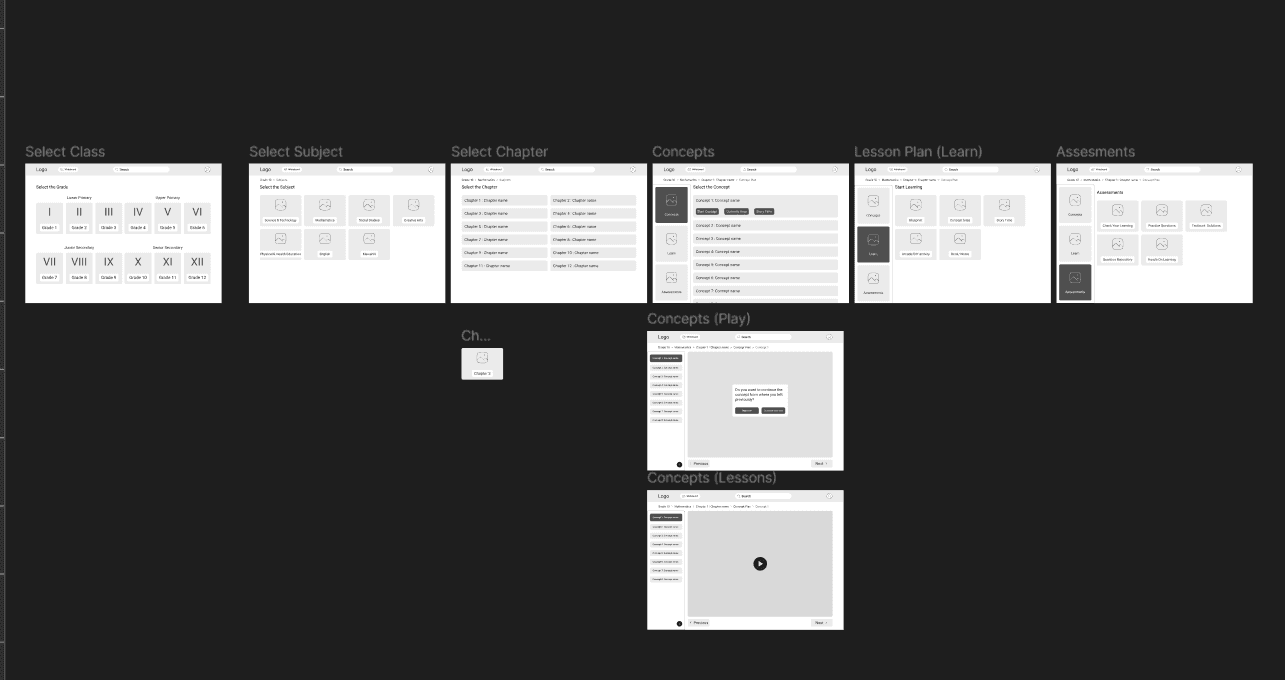
Present on every screen: Logo · Search · Whiteboard/Draw · Profile

Element

Why it's always there

Search

Lets experienced teachers jump directly to a concept without re-navigating the full hierarchy

Whiteboard

The panel's core hardware feature — annotation directly on screen. Always one tap away during live teaching

Profile

Quick access for session and account management


The Persistent Breadcrumb

Grade → Subject → Chapter → Lesson → Topic Name

Always visible. Always clickable. Every node is a recovery point.

Why non-negotiable: The IA is five levels deep at maximum. On a big screen, a teacher who taps the wrong option cannot afford to re-navigate from scratch in front of 30 students. The breadcrumb gives them a one-tap escape at any level.


Mid-Fidelity Wireframes

The wireframes translated the IA into actual screens for the smart panel.

Design constraints for a smart panel:

  • Screen size: typically 55"–86"

  • Used from 3–5 metres away

  • Touch-operated by the teacher

  • No keyboard — all navigation is touch-based

  • Active teaching environment — zero tolerance for distracting UI


Deliverables: Information Architecture Workflow · Mid-Fidelity Wireframes (Figma)

Status: Handed off.


Create a free website with Framer, the website builder loved by startups, designers and agencies.